inTrial Manage Connector for Claude
Connect your inTrial Manage account to Claude and other Model Context Protocol (MCP) clients to query and manage your firm's case data in natural language.
Overview#
The inTrial Manage connector is a remote MCP server operated by inTrial, LLC. Once connected, an AI assistant such as Claude can answer questions about your firm's cases, contacts, tasks, documents, leads, communications, and reports. When you grant it, it can also perform a limited set of everyday actions such as creating tasks, organizing drive folders, and saving files. Every request is authenticated as the connecting user and is limited to the data of that user's single inTrial Manage organization.
Requirements#
- An active inTrial Manage account.
- An MCP client that supports remote servers and OAuth, such as Claude.
- To save files, Claude must be allowed to reach mcp.intrial.com. See Allow Claude to save files to inTrial Manage below.
How to connect#
- Open inTrial Manage in the Claude directory and click Connect.
- Sign in to inTrial Manage if asked, then click Allow on the consent screen.
For other MCP clients, use the server URL https://mcp.intrial.com/.
You can revoke the connection at any time from within your MCP client, which immediately ends its access.
Example prompts#
Once connected, ask Claude in plain language. For example:
- "What deadlines do we have coming up in the next two weeks?"
- "Give me a status summary of Smith v. Jones."
- "Which of my cases haven't had any activity in the last 30 days?"
- "Create a task on Smith v. Jones to request the updated medical records, due Friday."
Allow Claude to save files to inTrial Manage#
Reading data works right after you connect. Saving a file Claude made or a file you uploaded to the chat into a case drive needs one more setting: Claude has to be allowed to send the file to mcp.intrial.com. Without it, Claude will tell you the upload was blocked.
Pro or Max plan
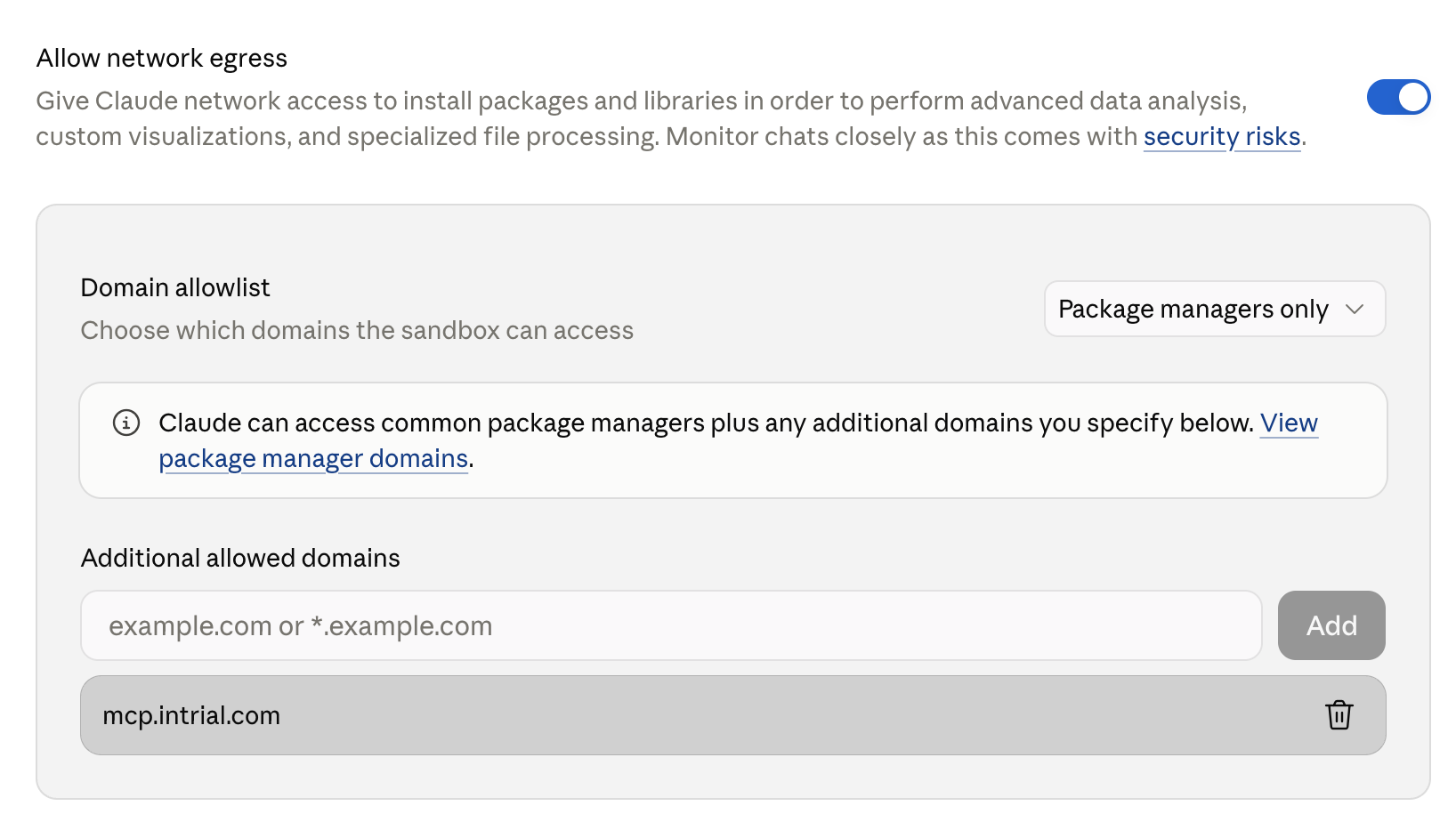
- In Claude, open Settings → Capabilities and scroll to Code execution and file creation.
- Turn on Cloud code execution and file creation and Allow network egress.
- Under Additional allowed domains, enter
mcp.intrial.comand click Add. - Start a new chat. Chats that were already open keep the old setting.
Team or Enterprise plan
An organization owner does this once for the whole firm: Organization settings → Capabilities → Code execution, set the domain allowlist to package managers plus custom domains, and add mcp.intrial.com. Individual users cannot change this on those plans.
Data access and permissions#
- Organization-scoped. The connector can only access data in the organization the connecting user belongs to. It cannot reach data belonging to any other firm.
- Mirrors your in-app permissions. Actions that change data require the same permissions the user would need to perform them in the inTrial Manage web app. A user who cannot edit a case in the app cannot edit it through the connector.
- No destructive operations. The connector does not expose any delete tools. It cannot delete cases, contacts, documents, tasks, or any other record.
- No outside messages. The connector does not send emails, text messages, or faxes, and does not trigger billing events. Team chat messages it posts notify teammates the same way messages posted in the app do.
Available tools#
The connector exposes the following tools. Read-only tools retrieve information; write tools make the limited, non-destructive changes described below.
Read-only tools
| search_cases | Find cases by name, client, or keyword. |
| search_case_documents | Full-text search within one case. |
| search_all_documents | Full-text search across every case. |
| search_org_drive_folders | Find folders in the firm-wide drive. |
| search_org_drive_files | Find files in the firm-wide drive. |
| list_org_drive_folder_contents | List the contents of an org-drive folder. |
| search_contacts | Search the org-wide contact directory. |
| search_faxes | Search sent and received faxes. |
| search_leads | Search the intake pipeline. |
| search_team_members | Find users by name. |
| search_product_faq | Search the inTrial product FAQ for how-to answers. |
| list_documents | List a case drive's folder tree and files. |
| list_my_tasks | List the signed-in user's own open tasks. |
| list_case_roles | List the firm’s case-role definitions. |
| list_case_phases | List a case type's workflow phases. |
| list_lead_sources | List configured lead sources. |
| list_sms_conversations | List recent client text threads. |
| list_pleadings | List a case’s pleadings. |
| get_case_data | Read structured data for one case. |
| get_case_status_summary | A status snapshot of one case. |
| get_case_full_context | A comprehensive read of one case. |
| get_case_payments | Recorded payments on a case. |
| get_case_team | Who holds each role on a case. |
| get_contact | Full record for one contact. |
| get_lead | Full record for one lead. |
| get_sms_conversation | Read one client text thread. |
| get_pages | Read the text of specific document pages. |
| get_file | Retrieve a document’s raw bytes. |
| calculate_case_value | A settlement projection for one case. |
| get_upcoming_deadlines | Upcoming deadlines across cases. |
| find_calendar_events | Look up calendar events. |
| find_stale_cases | Surface dormant or stalled cases. |
| find_recent_depositions | Recently saved depositions. |
| find_upcoming_depositions | Future-dated depositions. |
| analyze_client_sentiment | Flag clients who appear frustrated. |
| get_intake_report | Aggregated intake / leads report. |
| get_settlement_report | Aggregated settlements report. |
| get_case_report | Aggregated cases report. |
| get_task_report | Aggregated tasks report. |
| get_user_activity_report | Aggregated user-activity report. |
| get_note_tag_report | Notes grouped by tag. |
| list_note_tags | List the firm’s note tags. |
| get_call_transcript | Read the transcript of a recorded call. |
| list_case_custom_tabs | List a case’s custom tabs and their fields. |
| list_case_vehicles | List the vehicles on a case. |
| list_discovery_entries | List a case’s discovery entries. |
| list_negotiation_items | List a case’s demands and offers. |
| list_chat_channels | List the team chat channels you belong to. |
| list_channel_messages | Read messages in a chat channel. |
| list_dm_conversations | List your direct-message conversations. |
| list_dm_messages | Read messages in a direct-message conversation. |
Write tools
Write tools create or update records, organize drive files and folders, and post team chat messages. Small files can be saved in one call. Larger files use a two-step flow: the connector issues a short-lived upload link on mcp.intrial.com scoped to your organization, Claude uploads the file to it, and a second call registers it. There are no delete tools.
| create_task | Create a task on a case. |
| create_case_drive_folder | Create a folder in a case drive. |
| rename_case_drive_folder | Rename a case-drive folder. |
| move_case_drive_folder | Move a case-drive folder. |
| rename_case_drive_file | Rename a case-drive file. |
| move_case_drive_file | Move a case-drive file. |
| move_case_drive_files | Move several case-drive files at once. |
| create_org_drive_folder | Create a folder in the org drive. |
| rename_org_drive_folder | Rename an org-drive folder. |
| move_org_drive_folder | Move an org-drive folder. |
| rename_org_drive_file | Rename an org-drive file. |
| save_case_file | Save a small file to a case drive in one call. |
| save_org_file | Save a small file to the org drive in one call. |
| request_case_file_upload | Begin uploading a file to a case drive. |
| register_case_file | Finalize a case-drive file upload. |
| request_org_file_upload | Begin uploading a file to the org drive. |
| register_org_file | Finalize an org-drive file upload. |
| create_note | Add a note to a case. |
| add_note_comments_bulk | Comment on one or more notes. |
| update_case_field | Update a field on a case. |
| update_case_custom_fields | Update custom fields on a case. |
| create_case_custom_tab_item | Add an item to a case’s custom tab. |
| upsert_case_vehicle | Add or update a vehicle on a case. |
| create_contact | Create a contact. |
| update_contact | Update a contact. |
| add_deposition | Add a deposition to a case. |
| update_deposition | Update a deposition. |
| add_deposition_note | Add a note to a deposition. |
| add_discovery_entry | Add a discovery entry to a case. |
| update_discovery_entry | Update a discovery entry. |
| create_negotiation_item | Log a demand or offer on a case. |
| update_negotiation_item | Update a demand or offer. |
| post_channel_message | Post a message to a chat channel. |
| post_dm_message | Send a direct message to a teammate. |
Security#
- All traffic is served over HTTPS.
- Access is authenticated per request with a bearer token issued through OAuth 2.0; the connector rejects any request that is not authenticated and authorized for the target organization.
- Upload links are single-purpose tokens scoped to the requesting organization, tied to one file, and expire after 15 minutes.
- Access to firm data through the connector is logged for audit purposes.
For details on how data is handled, see our Privacy Policy (Sections 2.4 and 4.5 cover the connector specifically) and our Terms of Service.
Support#
Questions or issues with the connector? Contact us at support@inTrial.com.